
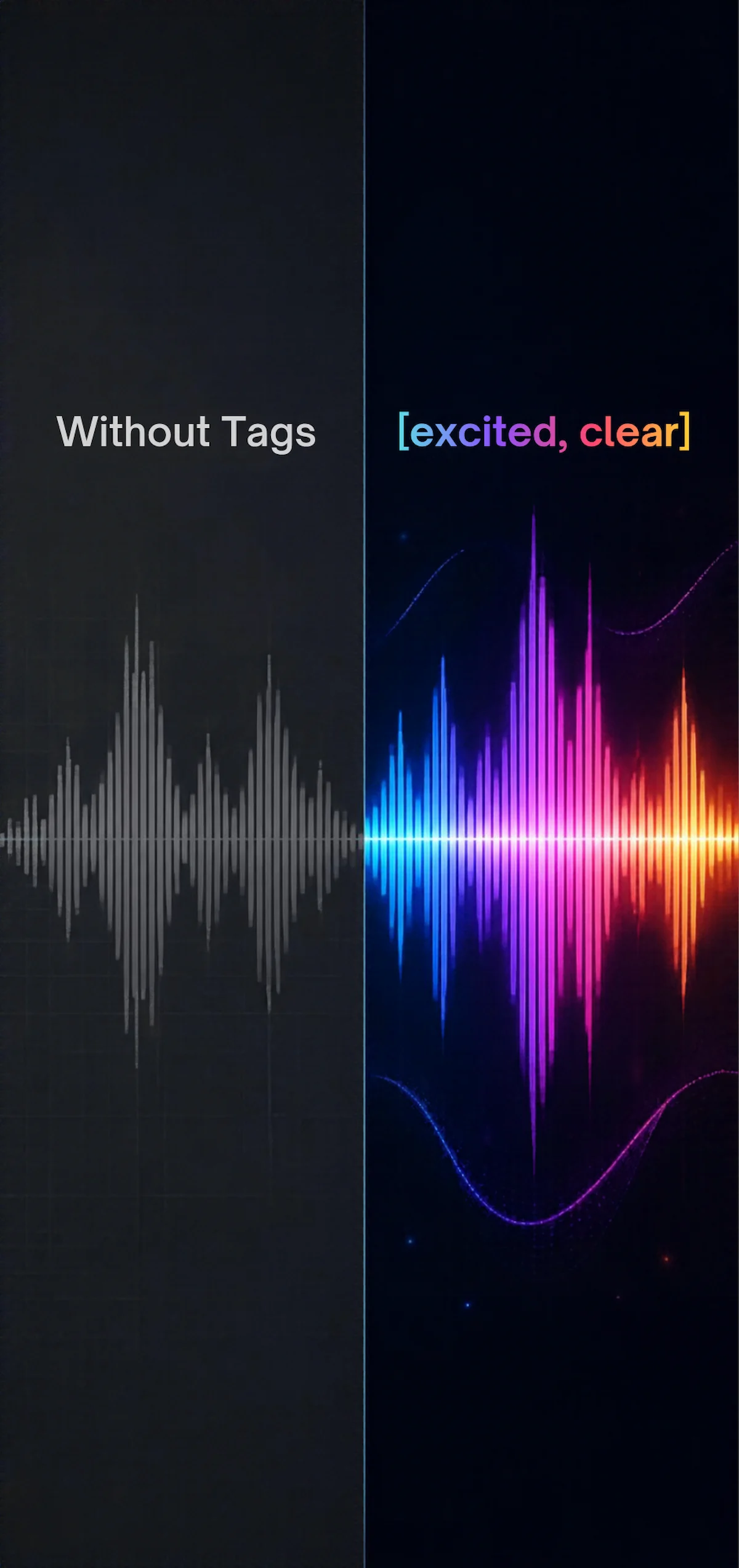
We have all been there. You write a brilliant script, plug it into an AI generator, and hit play, only to hear a painfully flat, monotone delivery that ruins the entire hook. Until recently, fixing that required endless prompt tweaking or manually cutting up audio files in a video editor.
With the recent launch of the Eleven v4 model, ElevenLabs has completely changed the game. By mastering ElevenLabs Audio Tags, you can now direct AI voices exactly like a human voice actor controlling emotion, pacing, whispers, and even natural human reactions without changing a single spoken word.
Here is exactly how to use these powerful natural-language cues to make your voiceovers sound completely human.
In the new Eleven v4 architecture, Audio Tags are short, natural-language directions placed inside square brackets directly in your script. They tell the AI model exactly how to deliver the words that follow.
Instead of relying on a rigid dropdown menu of pre-set styles, the v4 model accepts custom, conversational cues. You simply place the tag immediately before the clause you want to affect.
For example:
- Without tags: Why does this voiceover sound flat?
- With tags:
[curious, slightly frustrated]Why does this voiceover sound flat?
Review the table below to see the different categories of tags you can start using today:
2. The Secret to Writing Better Cues
The biggest mistake creators make when using ElevenLabs Audio Tags is being too vague. Words like [dark] or [fast] confuse the AI, as it does not know if you want a dark emotional tone or an environmental sound effect.
Instead, you must describe the specific vocal quality you want the listener to hear.
- Instead of
[sad scene], use:[quiet, holding back tears] - Instead of
[heroic], use:[strong, proud delivery] - Instead of
[dark], use:[low, restrained voice]
Remember, the underlying voice model still matters. If you select a cheerful, high-energy commercial voice, adding a [tired detective] tag will only do so much. Always start by picking a base voice that naturally fits the job, then use tags to fine-tune specific moments.
Nothing ruins a video faster than your AI voice suddenly saying the word “bracket excited bracket.” If this happens, it is almost always a strict formatting error.
If the AI reads your tags aloud, check this checklist:
- Check the Brackets: You must use square brackets
[like this]. Parentheses(like this)or curly braces{like this}will be read aloud as part of the script. - Check Your Model: Ensure you have Eleven v4 or Eleven v3 selected. Older legacy models do not support natural-language tags.
- Keep it Audio-Focused: Do not use visual directions like
[standing near a window]. The AI cannot translate physical locations into vocal changes. Stick strictly to sound-based descriptions.
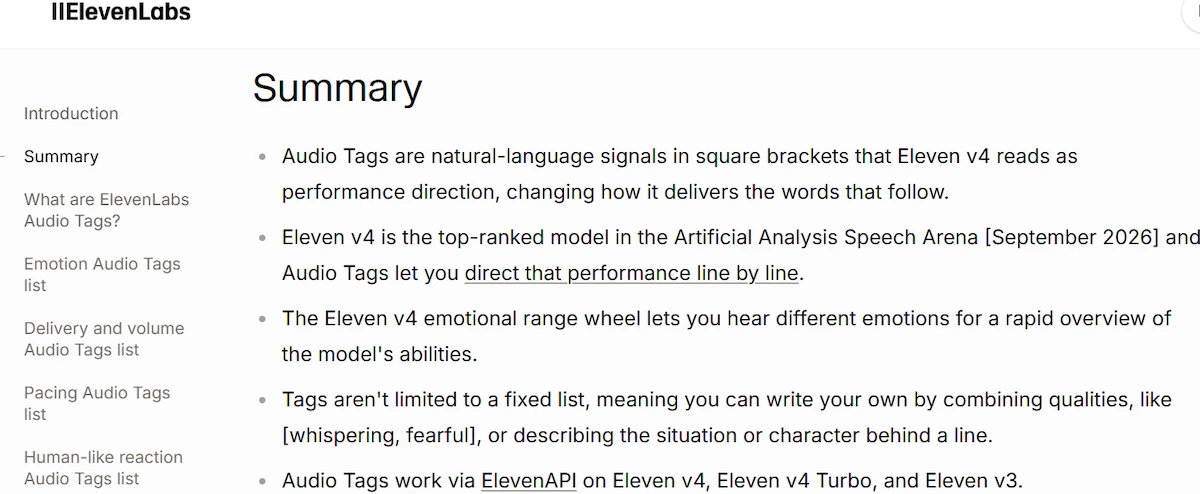
4. Handling Pauses and SSML Limitations
For developers and power users migrating from other platforms, it is crucial to note that Eleven v4 no longer supports traditional SSML break tags (like <break time="1s"/>).
Instead of writing code snippets for silence, you must rely entirely on Audio Tags like [short pause] or [long pause], combined with standard punctuation like commas and ellipses. If your project requires millimeter-precise timing such as syncing dialogue to specific video frames you will need to add those exact silent gaps in your video editor after exporting the MP3 or WAV file.
5. Multi-Speaker Dialogue in Eleven v4
One of the most impressive workflows unlocked by ElevenLabs Audio Tags is generating seamless two-person scenes. In the Text to Speech interface, you can now use the “Add speaker” function to alternate between two different voices.
By giving Speaker 1 a [skeptical, casual] tag and Speaker 2 a [matter-of-fact] tag, you can generate a complete, highly realistic conversation in a single generation run. The v4 model ensures the voices remain distinct while perfectly timing the natural pauses between the different turns.
Pro Hint: Protect Your API Credits
Testing different tags uses standard generation credits. However, the ElevenLabs website often allows up to two free regenerations if you keep the prompt, voice, and model identical. Keep in mind that changing the text inside an Audio Tag counts as changing the prompt, which will consume new credits. Always test your tags on short, one-sentence snippets before generating a massive five-minute script to protect your monthly quota.
Additional Resources:
- Read the full technical breakdown on The Rundown AI.
- Test the v4 model directly at ElevenLabs.io.
- Need to build a visual app for your voice AI? Read our No-Code Prototyping Blueprint.
- Learn how AI models recursively improve themselves in our Google Harness2 Framework Guide.
- Stay updated on the models powering these tools in our Enterprise AI News Hub.